
Interactive Sound in Assembly: The Real Deal
So far, we’ve made things move on screen. Now, let’s make some noise! The Amiga’s four 8-bit sound channels, collectively managed by the custom chip Paula, gave it audio capabilities that were light-years ahead of its time. In this tutorial, we’ll write an OS-friendly 68k assembly application that opens an Intuition window, renders an interactive button, and plays 8-bit PCM audio samples directly via hardware DMA.
The Amiga “Paula” Audio Hardware
The Paula custom chip features four independent 8-bit PCM sound channels (two mixed to the left audio output, two to the right). Each channel uses hardware DMA to fetch audio samples directly from Chip RAM without consuming CPU cycles.
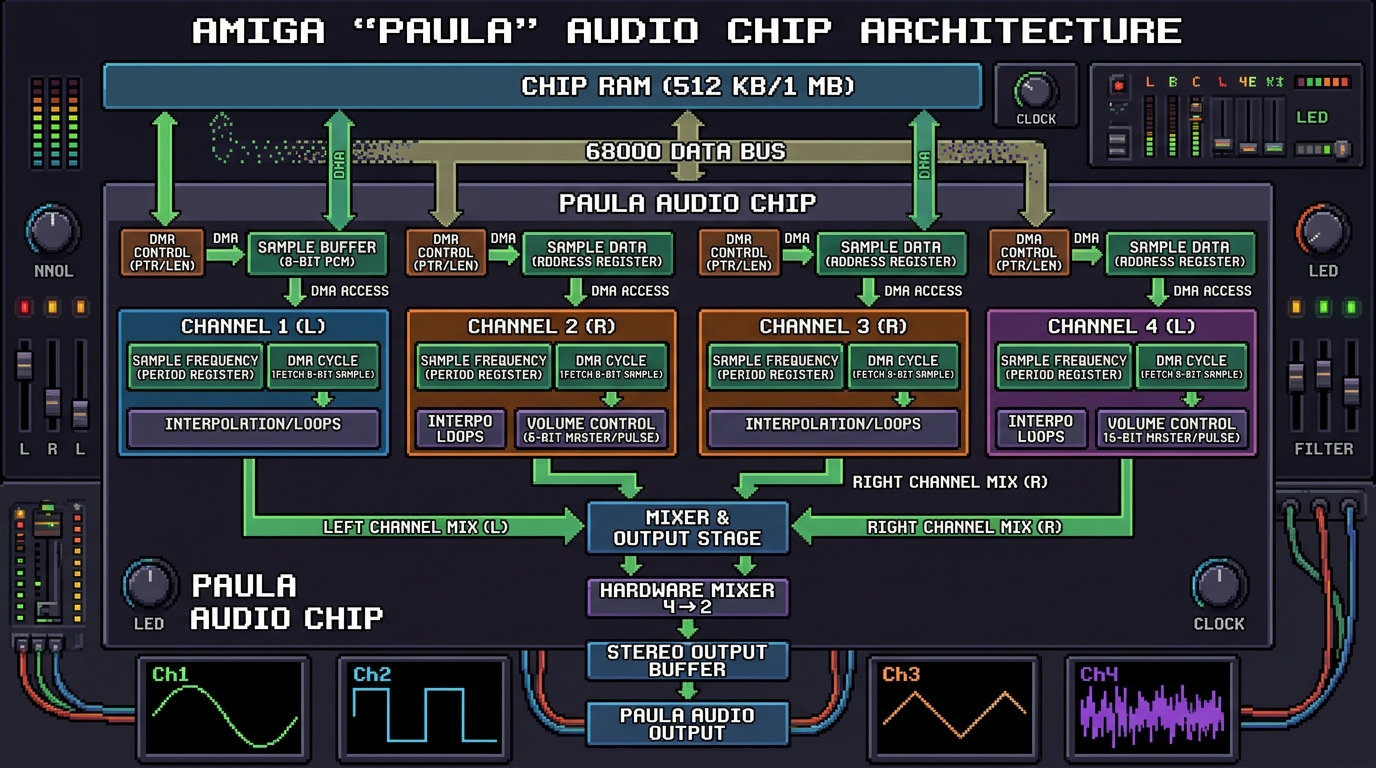 Click diagram to expand / view full size
Synthetic Audio vs. Custom Audio Files
When playing sound on the Amiga, you can choose between two approach types:
- Synthetic Audio Data (Self-Contained): Embed waveform bytes (square, sine, or pulse data) directly in your assembly code. This requires no external files and runs instantly in web-based environments like Amiga Playground.
- Custom Audio Files (
incbin): Convert any external audio recording (like a.wavfile) into raw 8-bit PCM data (sound.raw) and include it in your assembly source using theincbindirective.
Example 1: Self-Contained Synthetic Audio
In this example, the sound sample is embedded as a raw byte array directly in Chip RAM. This makes the code 100% self-contained so you can copy, paste, and run it anywhere without needing external files.
The Complete Code:
;-----------------------------------------------------
; asm_sound_button.asm
; Interactive Sound Button with Embedded Waveform
; - Opens an OS-friendly window on Workbench
; - Draws an interactive UI button
; - Plays embedded 8-bit PCM audio via Paula DMA
;-----------------------------------------------------
CUSTOM          equ     $DFF000
INTENA          equ     $09A
DMACON          equ     $096
AUD0PTH         equ     $0A0
AUD0LEN         equ     $0A4
AUD0PER         equ     $0A8
AUD0VOL         equ     $0A6

_LVOOpenLibrary  equ    -552
_LVOCloseLibrary equ    -414
_LVOOpenWindow   equ    -222
_LVOCloseWindow  equ    -72
_LVOWait         equ    -468
_LVOGetMsg       equ    -372
_LVOReplyMsg     equ    -378
_LVOSetAPen      equ    -330
_LVOMove         equ    -294
_LVOText         equ    -342
_LVORectFill     equ    -318

    SECTION code,CODE

start:
;--- Open Libraries ---
    move.l  $4.w,a6
    lea     IntuitionName,a1
    moveq   #0,d0
    jsr     _LVOOpenLibrary(a6)
    move.l  d0,IntuitionBase
    beq     cleanup_all

    move.l  $4.w,a6
    lea     GfxName,a1
    moveq   #0,d0
    jsr     _LVOOpenLibrary(a6)
    move.l  d0,GfxBase
    beq     fail_intuition

;--- Open Window ---
    lea     NewWindow,a0
    move.l  IntuitionBase,a6
    jsr     _LVOOpenWindow(a6)
    move.l  d0,Window
    beq     fail_gfx

    move.l  Window,a0
    move.l  116(a0),a1          ; RastPort pointer
    move.l  a1,RastPort

;--- Draw Button ---
    bsr     draw_button_up

;--- Event Loop ---
event_loop:
    move.l  Window,a0
    move.l  108(a0),d0          ; Signal mask
    move.l  $4.w,a6
    jsr     _LVOWait(a6)

    move.l  Window,a0
    move.l  104(a0),a1          ; UserPort
    move.l  $4.w,a6
    jsr     _LVOGetMsg(a6)
    move.l  d0,Message
    beq     event_loop

    move.l  Message,a0
    move.w  20(a0),d0           ; Message Class
    cmp.w   #$0200,d0           ; IDCMP_CLOSEWINDOW ($0200)
    beq     quit

    cmp.w   #$0008,d0           ; IDCMP_MOUSEBUTTONS ($0008)
    bne     reply_msg

    move.l  Message,a0
    move.w  22(a0),d0           ; Code
    cmp.w   #$68,d0             ; SELECTDOWN
    beq     mouse_down
    cmp.w   #$69,d0             ; SELECTUP
    beq     mouse_up

reply_msg:
    move.l  Message,a1
    move.l  $4.w,a6
    jsr     _LVOReplyMsg(a6)
    bra     event_loop

mouse_down:
    bsr     draw_button_down
    bsr     play_sound
    bra     reply_msg

mouse_up:
    bsr     draw_button_up
    bra     reply_msg

quit:
    move.l  Message,a1
    move.l  $4.w,a6
    jsr     _LVOReplyMsg(a6)

;--- Cleanup ---
fail_window:
    move.l  Window,a0
    move.l  IntuitionBase,a6
    jsr     _LVOCloseWindow(a6)
fail_gfx:
    move.l  GfxBase,a1
    move.l  $4.w,a6
    jsr     _LVOCloseLibrary(a6)
fail_intuition:
    move.l  IntuitionBase,a1
    move.l  $4.w,a6
    jsr     _LVOCloseLibrary(a6)
cleanup_all:
    moveq   #0,d0
    rts

;--- Subroutine: Draw Button Up ---
draw_button_up:
    movem.l d1-d3/a1,-(sp)
    move.l  RastPort,a1
    move.l  GfxBase,a6
    move.w  #1,d0               ; Color pen 1
    jsr     _LVOSetAPen(a6)
    move.w  #50,d0
    move.w  #30,d1
    move.w  #270,d2
    move.w  #70,d3
    jsr     _LVORectFill(a6)
    move.w  #2,d0               ; Color pen 2
    jsr     _LVOSetAPen(a6)
    move.w  #110,d0
    move.w  #52,d1
    jsr     _LVOMove(a6)
    lea     button_text,a0
    move.w  #10,d0
    jsr     _LVOText(a6)
    movem.l (sp)+,d1-d3/a1
    rts

;--- Subroutine: Draw Button Down ---
draw_button_down:
    movem.l d1-d3/a1,-(sp)
    move.l  RastPort,a1
    move.l  GfxBase,a6
    move.w  #2,d0               ; Color pen 2
    jsr     _LVOSetAPen(a6)
    move.w  #50,d0
    move.w  #30,d1
    move.w  #270,d2
    move.w  #70,d3
    jsr     _LVORectFill(a6)
    move.w  #1,d0               ; Color pen 1
    jsr     _LVOSetAPen(a6)
    move.w  #110,d0
    move.w  #52,d1
    jsr     _LVOMove(a6)
    lea     button_text,a0
    move.w  #10,d0
    jsr     _LVOText(a6)
    movem.l (sp)+,d1-d3/a1
    rts

;--- Subroutine: Play Sound ---
play_sound:
    lea     CUSTOM,a5
    lea     sound_data,a0
    move.l  a0,AUD0PTH(a5)      ; Set channel 0 sample pointer
    move.w  #sound_len,AUD0LEN(a5) ; Set sample length in words
    move.w  #424,AUD0PER(a5)    ; Period for ~8363 Hz playback
    move.w  #64,AUD0VOL(a5)     ; Volume (0..64)
    move.w  #$8201,DMACON(a5)   ; Enable Audio Channel 0 DMA (Bit 15 SET, Bit 9 DMAEN, Bit 0 AUD0EN)
    rts

;--- Data Section ---
    SECTION data,DATA

IntuitionName: dc.b 'intuition.library',0
GfxName:       dc.b 'graphics.library',0
button_text:   dc.b 'Play Sound',0
    EVEN

IntuitionBase: dc.l 0
GfxBase:       dc.l 0
Window:        dc.l 0
RastPort:      dc.l 0
Message:       dc.l 0

NewWindow:
    dc.w 0,0,320,100            ; Left, Top, Width, Height
    dc.w 1,2                    ; DetailPen, BlockPen
    dc.l $0208                  ; IDCMP Flags (IDCMP_CLOSEWINDOW | IDCMP_MOUSEBUTTONS)
    dc.l $000F                  ; Flags (WFLG_DRAGBAR | WFLG_DEPTHGADGET | WFLG_CLOSEGADGET | WFLG_ACTIVATE)
    dc.l 0,0                    ; FirstGadget, CheckMark
    dc.l window_title,0,0,0,0   ; Title, Screen, BitMap, Min/Max size
    dc.w 1                      ; Type (WBENCHSCREEN)
window_title: dc.b 'Amiga Audio Player',0
    EVEN

;--- Audio Sample Data in Chip RAM ---
    SECTION sound_chip,DATA_C

sound_data:
    ; Synthetic 8-bit PCM square wave burst
    dc.b 127,127,127,127,127,127,127,127,-128,-128,-128,-128,-128,-128,-128,-128
    dc.b 127,127,127,127,127,127,127,127,-128,-128,-128,-128,-128,-128,-128,-128
    dc.b 100,100,100,100,100,100,100,100,-100,-100,-100,-100,-100,-100,-100,-100
    dc.b  80, 80, 80, 80, 80, 80, 80, 80, -80, -80, -80, -80, -80, -80, -80, -80
    dc.b  60, 60, 60, 60, 60, 60, 60, 60, -60, -60, -60, -60, -60, -60, -60, -60
    dc.b  40, 40, 40, 40, 40, 40, 40, 40, -40, -40, -40, -40, -40, -40, -40, -40
    dc.b  20, 20, 20, 20, 20, 20, 20, 20, -20, -20, -20, -20, -20, -20, -20, -20
    dc.b   0,  0,  0,  0,  0,  0,  0,  0,   0,   0,   0,   0,   0,   0,   0,   0
sound_end:
sound_len equ (sound_end-sound_data)/2
Example 2: Using Custom Audio Files (incbin)
To use your own recorded sound effect or music sample in assembly:
Step 1: Exporting Raw PCM in Audacity
- Open your audio sample (
.wavor.mp3) in Audacity. - Change the Project Rate (bottom left) to 8363 Hz (standard Amiga C-3 pitch) or 11025 Hz.
- Click
File > Export > Export Audio. - Choose Other uncompressed files as format.
- Set Header to RAW (header-less) and Encoding to Signed 8-bit PCM.
- Save the file as
sound.rawin your assembly source directory.
Step 2: Binary Inclusion with incbin
In your assembly source code, replace the synthetic dc.b array in the Chip RAM section with the incbin directive:
;-----------------------------------------------------
; Custom Audio File Inclusion Example
;-----------------------------------------------------
    SECTION sound_chip,DATA_C

sound_data:
    incbin  "sound.raw"         ; Include external 8-bit raw PCM file
sound_end:
sound_len equ (sound_end-sound_data)/2 ; Length in words
When compiled with vasm, the assembler inserts the contents of sound.raw directly into the executable binary in Chip RAM.
How to Run in Amiga Playground
- Copy the Code: Click the Copy button on Example 1 above.
- Open Amiga Playground: Launch Amiga Playground on your Mac and create or open a 68k Assembly document.
- Paste & Run: Paste the code into the source editor and press Cmd + R (or click Build & Run).
- See the Result: Amiga Playground assembles the self-contained code with
vasmand runs it. Click the button to trigger audio playback!
How to Compile and Run with vasm
- Save the Code: Save Example 1 or Example 2 (with
sound.rawin the same directory) asasm_sound_button.asm. - Assemble: Open Terminal, navigate to your source folder, and run:
vasmm68k_mot -Fhunk -o asm_sound_button asm_sound_button.asm - Set up Emulator: Mount the folder containing
asm_sound_buttonas a hard drive (e.g.DH0:/Work) in FS-UAE or vAmiga. - Run in Emulator: Boot Workbench, open Shell/CLI, type
Work:asm_sound_button, and press Enter.